# User Guides
This section covers advanced configuration options and premium features available in miAlarm. Proper configuration ensures optimal performance and user experience.
# Primary Device Configuration
### Primary Device Configuration
#### Understanding Primary Devices
A primary device is your most frequently accessed alarm system, receiving:
- Priority connection allocation
- Prominent home screen placement
- Faster response times
#### Setting Your Primary Device
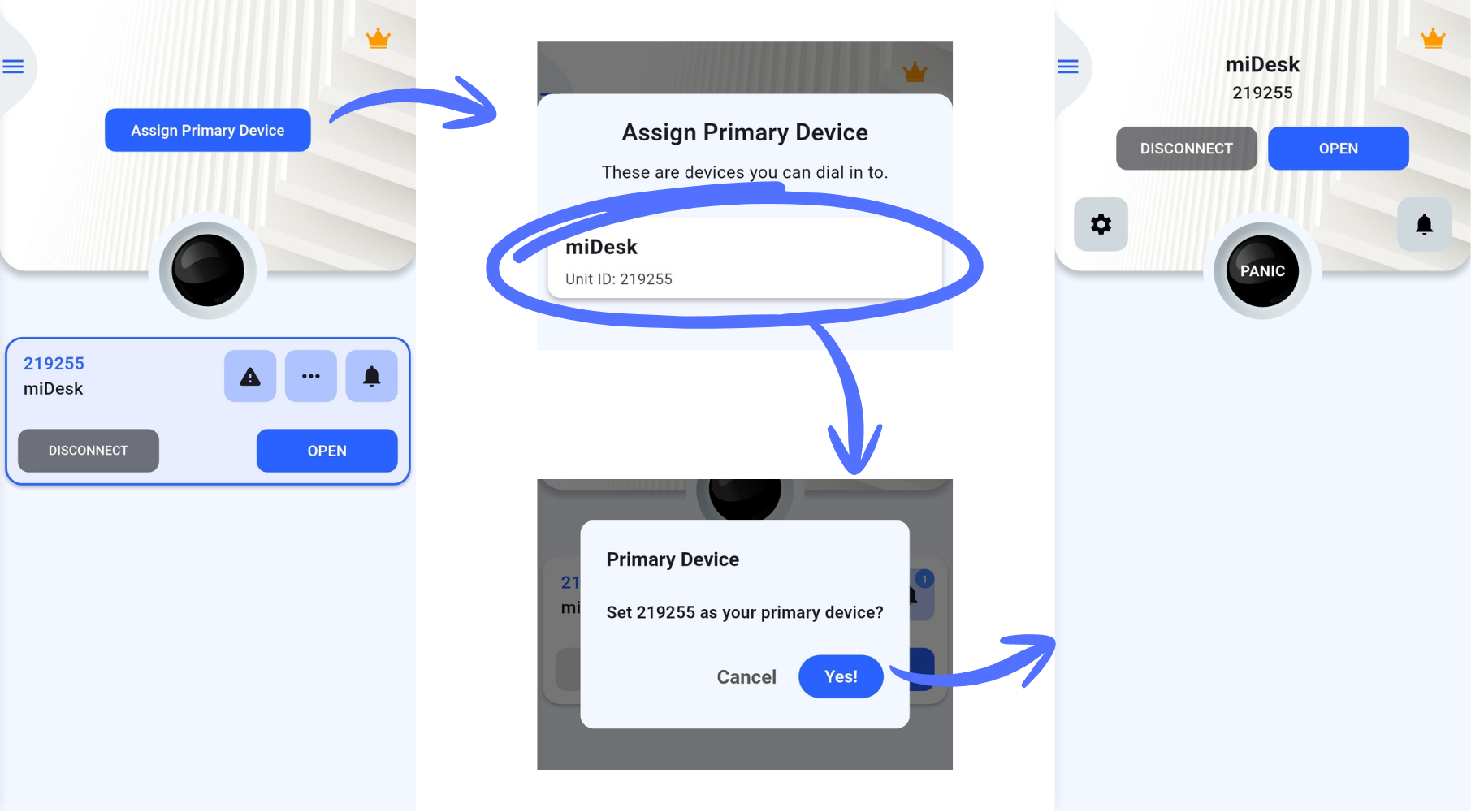
**Method 1: Home Screen Setup**
1. Tap "Assign Primary Device" on the main screen
2. Select your preferred device from the available list
3. Confirm your selection
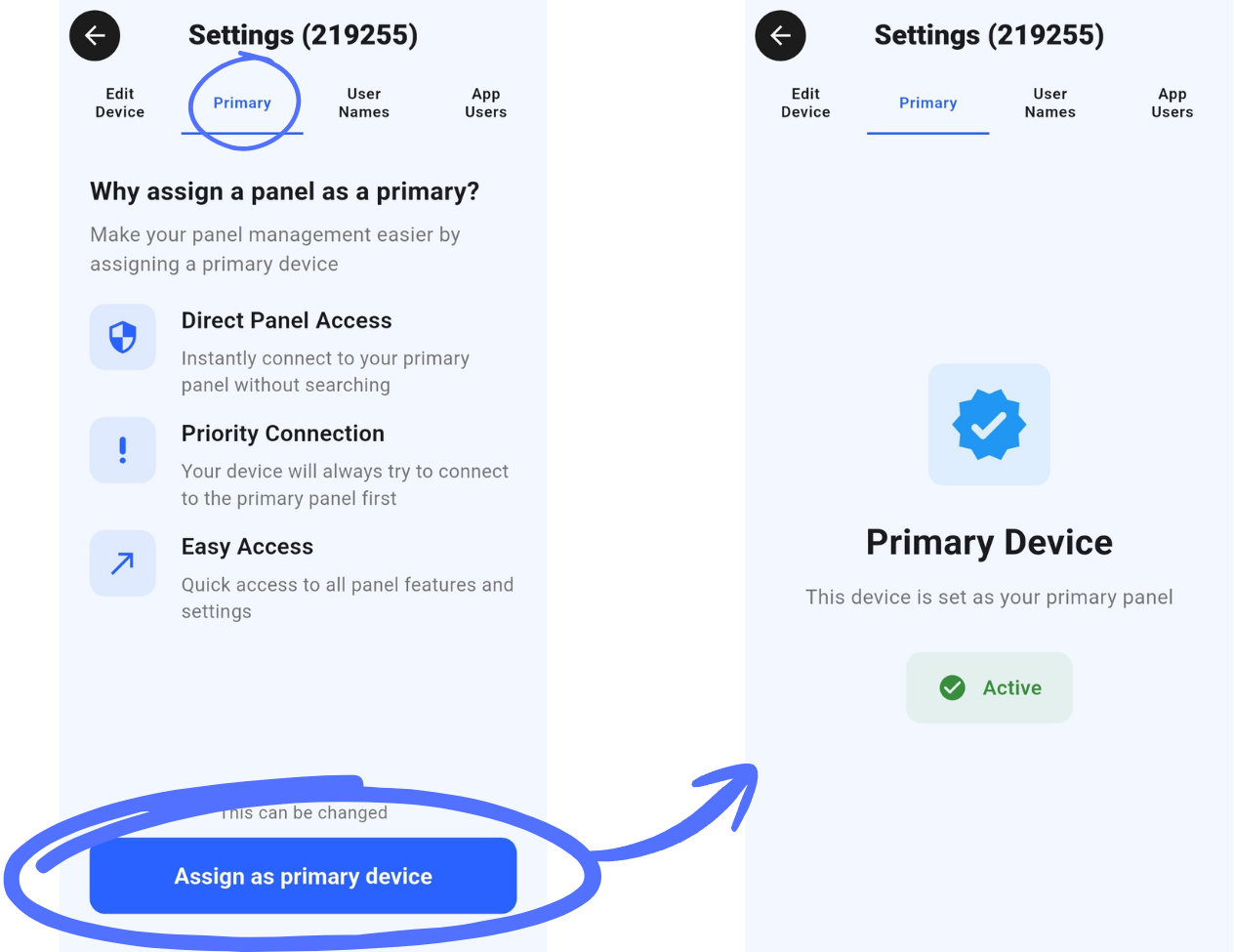
 **Method 2: Device Settings**
1. Open device settings
2. Navigate to the "Primary" tab
3. Enable "Set as primary device"
4. Confirm the change
**Method 2: Device Settings**
1. Open device settings
2. Navigate to the "Primary" tab
3. Enable "Set as primary device"
4. Confirm the change
 #### Managing Primary Status
- Only one device can be designated as primary
- Change primary designation at any time
- Remove primary status through device settings
- Visual indicators show current primary device
---
# Zone Management
### Zone Management
#### Zone Status Indicators
| Color | Status | Meaning |
|-------|--------|---------|
| 🟢 Green | Clear | Zone secure, no activity |
| 🔵 Blue | Bypassed | Zone disabled temporarily |
| 🔴 Red | Violated | Zone triggered/open |
| 🟠 Orange | Restored | Was violated, now clear |
#### Managing Zones
##### View All Zones:
1. Tap grid icon
2. Heatmap shows all zones
3. Filter by status/area
4. Click for details
##### Edit Zone Info:
1. Tap the Zones Grid Icon
2. Select relevant Zone number
3. Tap Edit Zone
4. Update:
- Zone name
- Triggered Text
- Clear Text
5. Save changes
---
### 🔄 Bypassing Zones {#bypass}
#### What is Bypassing?
Temporarily disable specific zones while keeping others active.
#### When to Bypass
- Faulty sensor
- Maintenance work
- Leaving window open
- Pet in secured area
- Temporary access needed
#### How to Bypass
##### Method 1: Zone List
1. Expand area card
2. Find zone to bypass
3. Toggle switch OFF
4. Zone turns blue
##### Method 2: Heatmap
1. Switch to heatmap view
2. Tap zone tile
3. Select "Bypass"
4. Confirm action
##### Method 3: Quick Swipe
1. In zone list
2. Swipe right on zone
3. Quick bypass toggle
#### Managing Bypassed Zones
##### View All Bypassed:
1. Heatmap view
2. Filter → "Bypassed"
3. Shows blue zones only
##### Clear All Bypasses:
1. Disarm area
2. Re-arm without bypass
3. Or manually unbypass each
##### Bypass Notifications:
- Alert when zones bypassed
- Status in notifications
---
# User Management
### User Management
#### Understanding User Roles
The system supports multiple user types with varying permission levels:
- **Master Users**: Full administrative privileges
- **Standard Users**: Limited operational access
#### User Administration (Master Users Only)
1. Access device settings
2. Select "User Names" tab
3. View all users with system access
4. Manage user permissions and access levels
#### User Management Capabilities
Master users can:
- View complete user lists
- Remove standard user access
- Edit user display names
#### User Code Management
- Each user has a unique 4-digit code
- Codes link to specific user profiles
- All actions are logged for security
- Regular code updates recommended
---
# Notification Configuration
### Notification Configuration
#### Comprehensive Alert Management
Customize your notification preferences to receive only the information you need, when you need it.
#### System-Wide Notifications
1. Access sidebar menu
2. Select "Notifications"
3. View consolidated message center
#### Device-Specific Settings
1. Open device settings
2. Navigate to "Push Notifications"
3. Enable or disable global notifications
4. Select specific alert types
#### Available Alert Categories
- **24-Hour Monitoring**: Always-active zone alerts
- **Access Events**: Entry and exit notifications
- **Auto Test**: Automated test results
- **Burglary**: Intrusion detection warnings
- **Bypass Notifications**: Zone override alerts
- **Fire Alarms**: Fire detection system alerts
- **Patrol Updates**: Security patrol confirmations
- **Medical Alerts**: Emergency medical notifications
- **Open/Close**: Standard opening and closing notifications
- **Open/Close Monitor**: Advanced opening and closing notifications
- **Panic**: Panic button activations
- **Supervision**: Monitored device notifications
- **System Messages**: General operational and maintenance notifications
#### Notification Best Practices
- Enable only essential notifications to avoid alert fatigue
- Test notification delivery monthly
- Ensure phone permissions are properly configured
- Consider quiet hours for non-emergency alerts
---
# Emergency Contact Management
### Emergency Contact Management
#### Personal Emergency Contacts
Configure trusted contacts for emergency situations:
1. Add primary emergency contacts
2. Test contact functionality regularly
#### Official Emergency Services
Customize official emergency numbers for your region:
- Police Services (SAPS)
- Fire Department
- Medical Emergency Services
- Armed Response Units
#### Location Sharing Features
- GPS coordinate transmission
- Manual sharing options available
---
# Advanced Configuration
### Advanced Configuration
#### Device Synchronization
Keep your device configuration current:
1. Access device settings
2. System retrieves latest configuration
3. Updates include:
- Area definitions
- Zone configurations
- Smart action settings
- User permissions
#### Operating Mode Selection
For compatible systems, switch between operational modes:
1. Navigate to Settings
2. Select "Mode" tile
3. Available options may include:
- Standard Mode
- Custom Panel Mode Configurations
4. Allow 2-3 minutes for mode changes to apply
#### Security Enhancements
**Biometric Authentication**
- Enable fingerprint or facial recognition
- Provides quick, secure access
- Password fallback always available
- Recommended for all users
**Auto-Logout Protection**
- 30-second inactivity timeout
- Prevents unauthorized access
- Applies to sensitive screens
**Session Management**
- "Remember Me" option for trusted devices
- Biometric re-authentication required
- Secure token storage
---
### Privacy and Permissions
#### Required Permissions
The app requires specific permissions to function properly:
- **Location**: For emergency GPS sharing
- **Camera**: For QR code scanning
- **Notifications**: For alert delivery
- **Contacts**: For emergency contact integration
#### Privacy Considerations
- All data transmissions are encrypted
- Location data only shared during emergencies
- No background location tracking
---
# Subscription Management
### Subscription Management
#### Account Tiers
**Free Account**
- Connect up to 5 devices
- Access all core features
- No time restrictions
**Pro Subscription**
- Connect up to 10 devices
- Advanced feature access
- Early access to new features
**Unlimited Subscription**
- Connect an unlimited amount of devices
- Access to ALL features
#### Subscription Options
- **Monthly Pro Plan**: R14.99 per month
- **Annual Pro Plan**: R149.99 per year (save 17%)
- **Monthly Unlimited Plan**: R149.99 per month
- **Annual Unlimited Plan**: R1499.99 per year (save 17%)
#### Managing Your Subscription
**To Purchase**:
1. Tap the crown icon on home screen
2. Select your preferred plan
3. Choose payment method
4. Complete transaction through app store
**To Manage Existing Subscription**:
1. Navigate to sidebar menu
2. Select "Subscriptions"
3. Manage through your app store account
4. Modify or cancel as needed
---
# Cancellation Emoji Feature
#### Managing Primary Status
- Only one device can be designated as primary
- Change primary designation at any time
- Remove primary status through device settings
- Visual indicators show current primary device
---
# Zone Management
### Zone Management
#### Zone Status Indicators
| Color | Status | Meaning |
|-------|--------|---------|
| 🟢 Green | Clear | Zone secure, no activity |
| 🔵 Blue | Bypassed | Zone disabled temporarily |
| 🔴 Red | Violated | Zone triggered/open |
| 🟠 Orange | Restored | Was violated, now clear |
#### Managing Zones
##### View All Zones:
1. Tap grid icon
2. Heatmap shows all zones
3. Filter by status/area
4. Click for details
##### Edit Zone Info:
1. Tap the Zones Grid Icon
2. Select relevant Zone number
3. Tap Edit Zone
4. Update:
- Zone name
- Triggered Text
- Clear Text
5. Save changes
---
### 🔄 Bypassing Zones {#bypass}
#### What is Bypassing?
Temporarily disable specific zones while keeping others active.
#### When to Bypass
- Faulty sensor
- Maintenance work
- Leaving window open
- Pet in secured area
- Temporary access needed
#### How to Bypass
##### Method 1: Zone List
1. Expand area card
2. Find zone to bypass
3. Toggle switch OFF
4. Zone turns blue
##### Method 2: Heatmap
1. Switch to heatmap view
2. Tap zone tile
3. Select "Bypass"
4. Confirm action
##### Method 3: Quick Swipe
1. In zone list
2. Swipe right on zone
3. Quick bypass toggle
#### Managing Bypassed Zones
##### View All Bypassed:
1. Heatmap view
2. Filter → "Bypassed"
3. Shows blue zones only
##### Clear All Bypasses:
1. Disarm area
2. Re-arm without bypass
3. Or manually unbypass each
##### Bypass Notifications:
- Alert when zones bypassed
- Status in notifications
---
# User Management
### User Management
#### Understanding User Roles
The system supports multiple user types with varying permission levels:
- **Master Users**: Full administrative privileges
- **Standard Users**: Limited operational access
#### User Administration (Master Users Only)
1. Access device settings
2. Select "User Names" tab
3. View all users with system access
4. Manage user permissions and access levels
#### User Management Capabilities
Master users can:
- View complete user lists
- Remove standard user access
- Edit user display names
#### User Code Management
- Each user has a unique 4-digit code
- Codes link to specific user profiles
- All actions are logged for security
- Regular code updates recommended
---
# Notification Configuration
### Notification Configuration
#### Comprehensive Alert Management
Customize your notification preferences to receive only the information you need, when you need it.
#### System-Wide Notifications
1. Access sidebar menu
2. Select "Notifications"
3. View consolidated message center
#### Device-Specific Settings
1. Open device settings
2. Navigate to "Push Notifications"
3. Enable or disable global notifications
4. Select specific alert types
#### Available Alert Categories
- **24-Hour Monitoring**: Always-active zone alerts
- **Access Events**: Entry and exit notifications
- **Auto Test**: Automated test results
- **Burglary**: Intrusion detection warnings
- **Bypass Notifications**: Zone override alerts
- **Fire Alarms**: Fire detection system alerts
- **Patrol Updates**: Security patrol confirmations
- **Medical Alerts**: Emergency medical notifications
- **Open/Close**: Standard opening and closing notifications
- **Open/Close Monitor**: Advanced opening and closing notifications
- **Panic**: Panic button activations
- **Supervision**: Monitored device notifications
- **System Messages**: General operational and maintenance notifications
#### Notification Best Practices
- Enable only essential notifications to avoid alert fatigue
- Test notification delivery monthly
- Ensure phone permissions are properly configured
- Consider quiet hours for non-emergency alerts
---
# Emergency Contact Management
### Emergency Contact Management
#### Personal Emergency Contacts
Configure trusted contacts for emergency situations:
1. Add primary emergency contacts
2. Test contact functionality regularly
#### Official Emergency Services
Customize official emergency numbers for your region:
- Police Services (SAPS)
- Fire Department
- Medical Emergency Services
- Armed Response Units
#### Location Sharing Features
- GPS coordinate transmission
- Manual sharing options available
---
# Advanced Configuration
### Advanced Configuration
#### Device Synchronization
Keep your device configuration current:
1. Access device settings
2. System retrieves latest configuration
3. Updates include:
- Area definitions
- Zone configurations
- Smart action settings
- User permissions
#### Operating Mode Selection
For compatible systems, switch between operational modes:
1. Navigate to Settings
2. Select "Mode" tile
3. Available options may include:
- Standard Mode
- Custom Panel Mode Configurations
4. Allow 2-3 minutes for mode changes to apply
#### Security Enhancements
**Biometric Authentication**
- Enable fingerprint or facial recognition
- Provides quick, secure access
- Password fallback always available
- Recommended for all users
**Auto-Logout Protection**
- 30-second inactivity timeout
- Prevents unauthorized access
- Applies to sensitive screens
**Session Management**
- "Remember Me" option for trusted devices
- Biometric re-authentication required
- Secure token storage
---
### Privacy and Permissions
#### Required Permissions
The app requires specific permissions to function properly:
- **Location**: For emergency GPS sharing
- **Camera**: For QR code scanning
- **Notifications**: For alert delivery
- **Contacts**: For emergency contact integration
#### Privacy Considerations
- All data transmissions are encrypted
- Location data only shared during emergencies
- No background location tracking
---
# Subscription Management
### Subscription Management
#### Account Tiers
**Free Account**
- Connect up to 5 devices
- Access all core features
- No time restrictions
**Pro Subscription**
- Connect up to 10 devices
- Advanced feature access
- Early access to new features
**Unlimited Subscription**
- Connect an unlimited amount of devices
- Access to ALL features
#### Subscription Options
- **Monthly Pro Plan**: R14.99 per month
- **Annual Pro Plan**: R149.99 per year (save 17%)
- **Monthly Unlimited Plan**: R149.99 per month
- **Annual Unlimited Plan**: R1499.99 per year (save 17%)
#### Managing Your Subscription
**To Purchase**:
1. Tap the crown icon on home screen
2. Select your preferred plan
3. Choose payment method
4. Complete transaction through app store
**To Manage Existing Subscription**:
1. Navigate to sidebar menu
2. Select "Subscriptions"
3. Manage through your app store account
4. Modify or cancel as needed
---
# Cancellation Emoji Feature