# miAlarm App
# Table of Contents
## Welcome to miAlarm
The comprehensive guide to South Africa's leading mobile security management platform. This documentation provides everything you need to effectively manage your security system from anywhere.
---
#### Getting Started
A straightforward set of guides to get you up and running quickly
- [Installation](https://www.finmon.co.za/kb/books/mialarm-app/page/installation)
- [Account Registration](https://www.finmon.co.za/kb/books/mialarm-app/page/account-registration)
- [Adding Your First Device](https://www.finmon.co.za/kb/books/mialarm-app/page/adding-devices)
- [First Connection](https://www.finmon.co.za/kb/books/mialarm-app/page/first-connection)
#### [User Guides](https://www.finmon.co.za/kb/books/mialarm-app/chapter/user-guides)
Complete operational instructions for daily use
- [Primary Device Setup](https://www.finmon.co.za/kb/books/mialarm-app/page/primary-device-configuration)
- [Zone Management](https://www.finmon.co.za/kb/books/mialarm-app/page/zone-management)
- [User Management](https://www.finmon.co.za/kb/books/mialarm-app/page/user-management)
- [Notification Preferences](https://www.finmon.co.za/kb/books/mialarm-app/page/notification-configuration)
- [Emergency Contacts](https://www.finmon.co.za/kb/books/mialarm-app/page/emergency-contact-management)
- [Advanced Configuration](https://www.finmon.co.za/kb/books/mialarm-app/page/advanced-configuration)
- [Subscription Management](https://www.finmon.co.za/kb/books/mialarm-app/page/subscription-management)
#### [What's New in v3.0.0](changelog)
Latest features and improvements
- New Features
- Performance Improvements
- Bug Fixes
- Migration Guide
#### [FAQ & Troubleshooting](faq.md)
Solutions to common questions and issues
- Frequently Asked Questions
- Connection Issues
- Account Problems
- Technical Support
#### [Support](support.md)
How to get help when you need it
- Contact Information
- Support Resources
- Community
---
### Contact Information
**Technical Support**: support@mialarm.co.za
**Website**: [mialarm.co.za](https://mialarm.co.za)
**Business Hours**: Monday-Friday, 8:00 AM - 16:30 PM SAST
### Download miAlarm
**iOS**: [Download from App Store](https://apps.apple.com/app/mialarm)
**Android**: [Download from Google Play](https://play.google.com/store/apps/details?id=com.mialarm)
**Huawei** : [Download from AppGallery](https://appgallery.huawei.com/app/C103844591)
---
### About This Documentation
Current Version: 3.0.0
Last Updated: June 2025
This documentation is maintained and updated regularly to ensure accuracy. We believe security should be powerful yet simple to manage.
# Getting Started *
Guide to get you started with everything you need to get a device added to your new miAlarm app.
# Installation
### Download and Installation
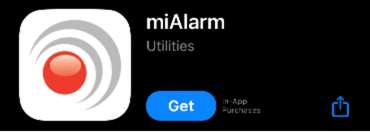
#### iOS Installation
1. Open the App Store on your iPhone or iPad
2. Search for "miAlarm"
3. Tap "Get" to download and install
4. Wait for the installation to complete
 #### Android Installation
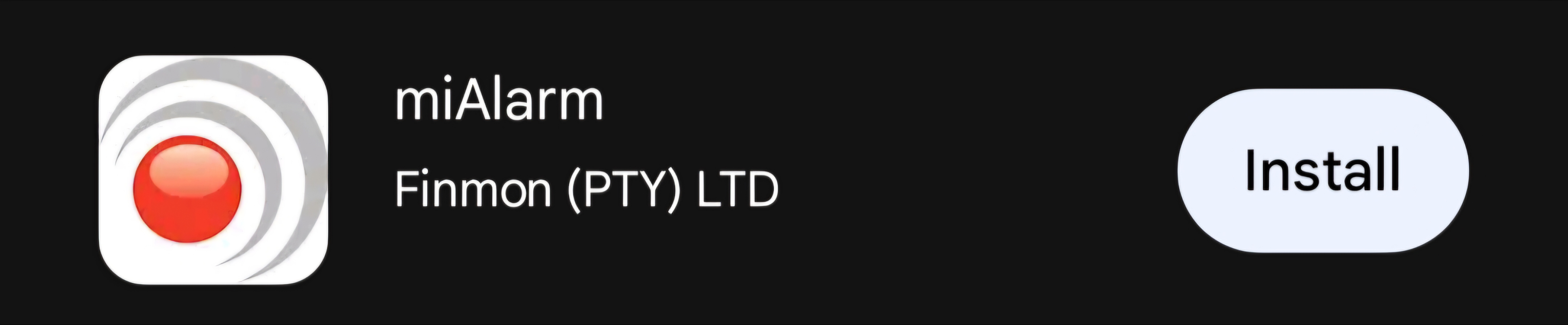
1. Open Google Play Store
2. Search for "miAlarm"
3. Tap "Install"
4. Accept the required permissions when prompted
#### Android Installation
1. Open Google Play Store
2. Search for "miAlarm"
3. Tap "Install"
4. Accept the required permissions when prompted
 #### Huawei Installation
1. Open Huawei AppGallery
2. Search for "miAlarm"
3. Tap "Install"
#### Huawei Installation
1. Open Huawei AppGallery
2. Search for "miAlarm"
3. Tap "Install"
 **Note**: Ensure you have a stable internet connection before beginning the download.
#### Direct Links
**iOS**: [Download from App Store](https://apps.apple.com/app/mialarm)
**Android**: [Download from Google Play](https://play.google.com/store/apps/details?id=com.mialarm)
**Huawei** : [Download from AppGallery](https://appgallery.huawei.com/app/C103844591)
---
# Account Registration
### Creating Your Account
#### First Launch
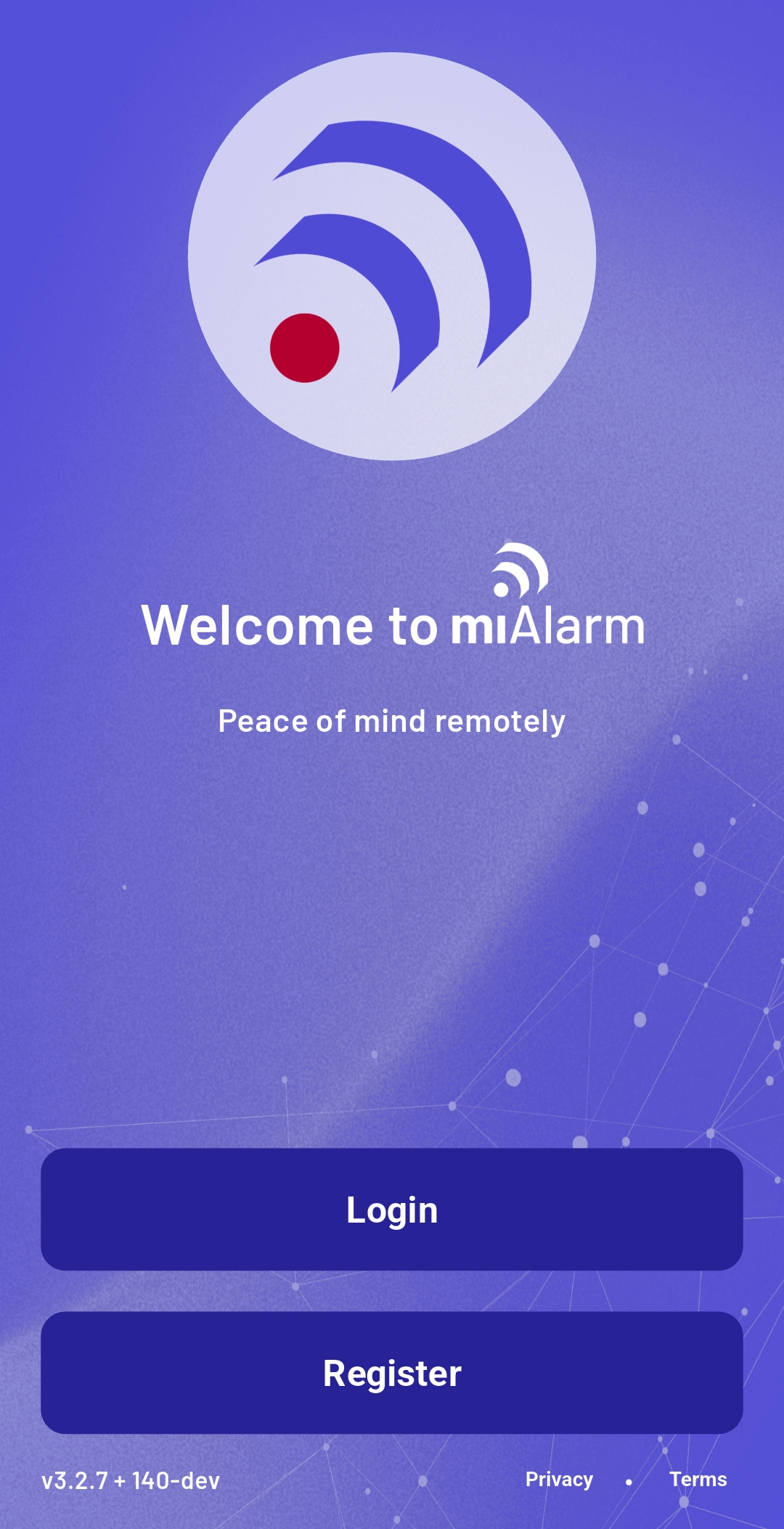
When you open miAlarm for the first time, you'll see a welcome screen with two options:
- **Login** - For existing users
- **Register** - For new users
**Note**: Ensure you have a stable internet connection before beginning the download.
#### Direct Links
**iOS**: [Download from App Store](https://apps.apple.com/app/mialarm)
**Android**: [Download from Google Play](https://play.google.com/store/apps/details?id=com.mialarm)
**Huawei** : [Download from AppGallery](https://appgallery.huawei.com/app/C103844591)
---
# Account Registration
### Creating Your Account
#### First Launch
When you open miAlarm for the first time, you'll see a welcome screen with two options:
- **Login** - For existing users
- **Register** - For new users
 #### Registration Process
Select "Register" and provide the following information:
1. **Personal Details**
- First Name
- Last Name
- Username (this will be your login ID - choose carefully)
- Email Address
- Contact Number
#### Registration Process
Select "Register" and provide the following information:
1. **Personal Details**
- First Name
- Last Name
- Username (this will be your login ID - choose carefully)
- Email Address
- Contact Number
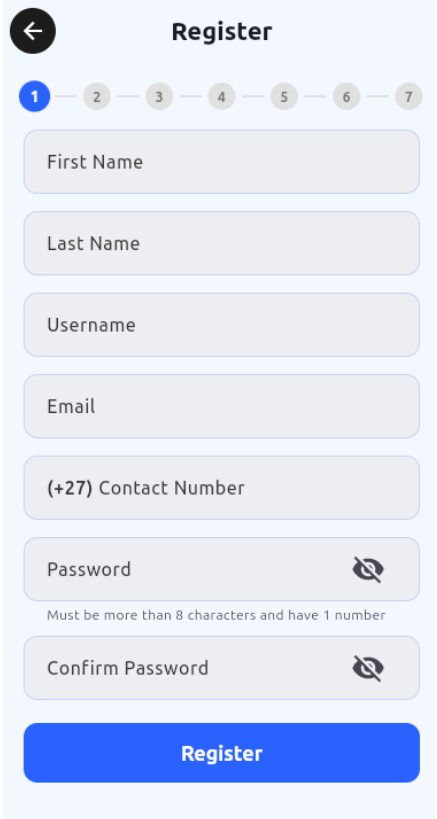 3. **Security Credentials**
- Password (must include at least one number and one uppercase letter)
- Confirm Password
4. Complete registration by tapping "Register"
**Important Considerations**:
- Each email address and phone number can only be used for one account
- Your username cannot be changed after registration
- Store your password securely - you'll need it for future logins
- Create a unique profile per user to avoid any notifications not arriving.
---
# Adding Devices
### Adding Your First Device
After successful registration, you'll be automatically logged in and prompted to add your first device.
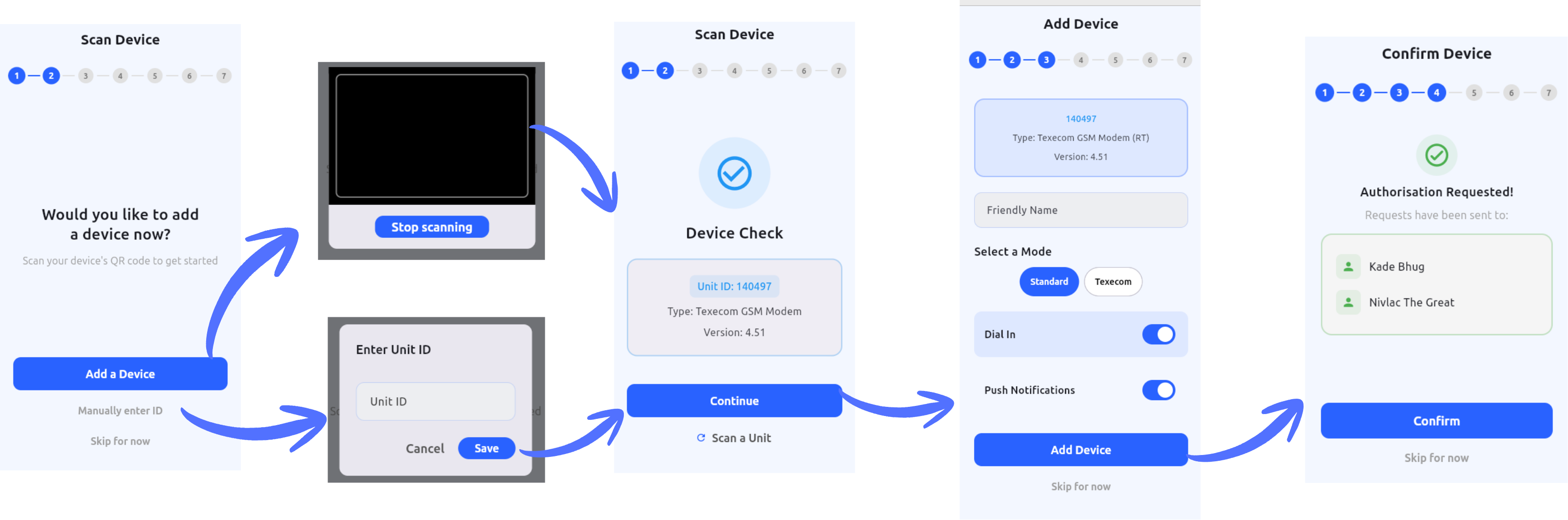
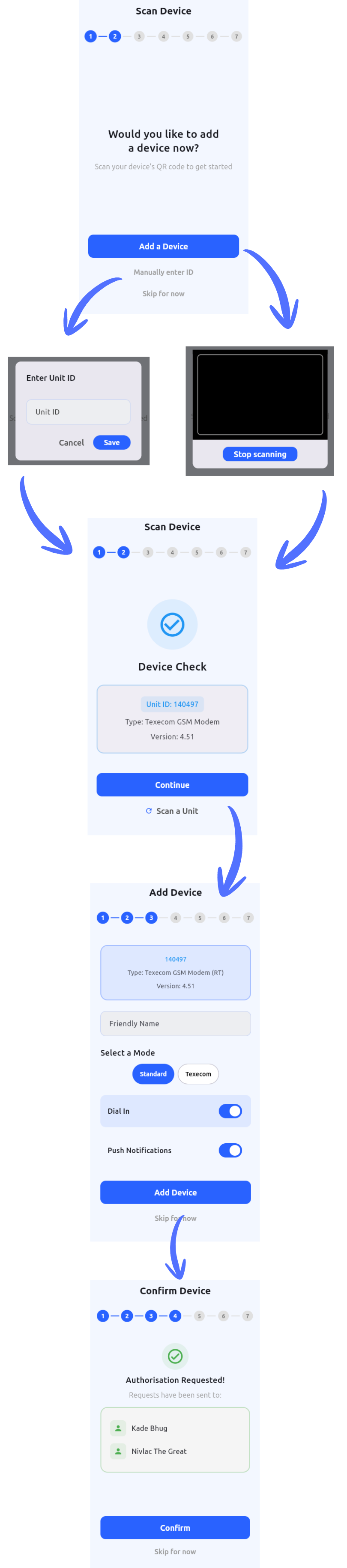
#### Option 1: Scan Device Barcode (Recommended)
The fastest way to add your device:
1. Tap "Add a Device"
2. Allow camera access when prompted
3. Scan the QR code or barcode on your Finmon device
4. The system will automatically populate the device details
#### Option 2: Manual Entry
If scanning isn't possible:
1. Tap "Manually enter ID"
2. Type your Unit ID (found on the serial number label of your Finmon device)
3. Tap "Continue"
#### Device Configuration
Once your device is identified, configure these settings:
1. **Friendly Name**: Give your device a meaningful name (e.g., "Home Alarm", "Office Security")
2. **Dial-In Access**: Enable this option to allow remote control of your alarm panel
3. **User Code**: Enter your 4-digit alarm code (the same one you use on your keypad)
4. **Push Notifications**: Enable to receive real-time alerts on your phone
5. Tap "Add Device" to save your configuration
---
### Understanding the Authorization Process
After adding a device, you'll encounter one of three authorization statuses:
#### Authorization Requested
Your request has been sent to the device administrators. This is normal for shared systems where multiple users have access. Wait for an existing administrator to approve your request.
#### Master Access Granted
You've been approved as a device administrator. The device will now appear on your home screen with full access privileges.
#### Duplicate Device
The system detected this device is already linked to your account. Simply return to the home screen and look for your device in the list.
If you are unable to find your device, select the 3 menu lines on the top left of the screen, then select System Options and Restart.
---
# First Connection
### Connecting to Your Device
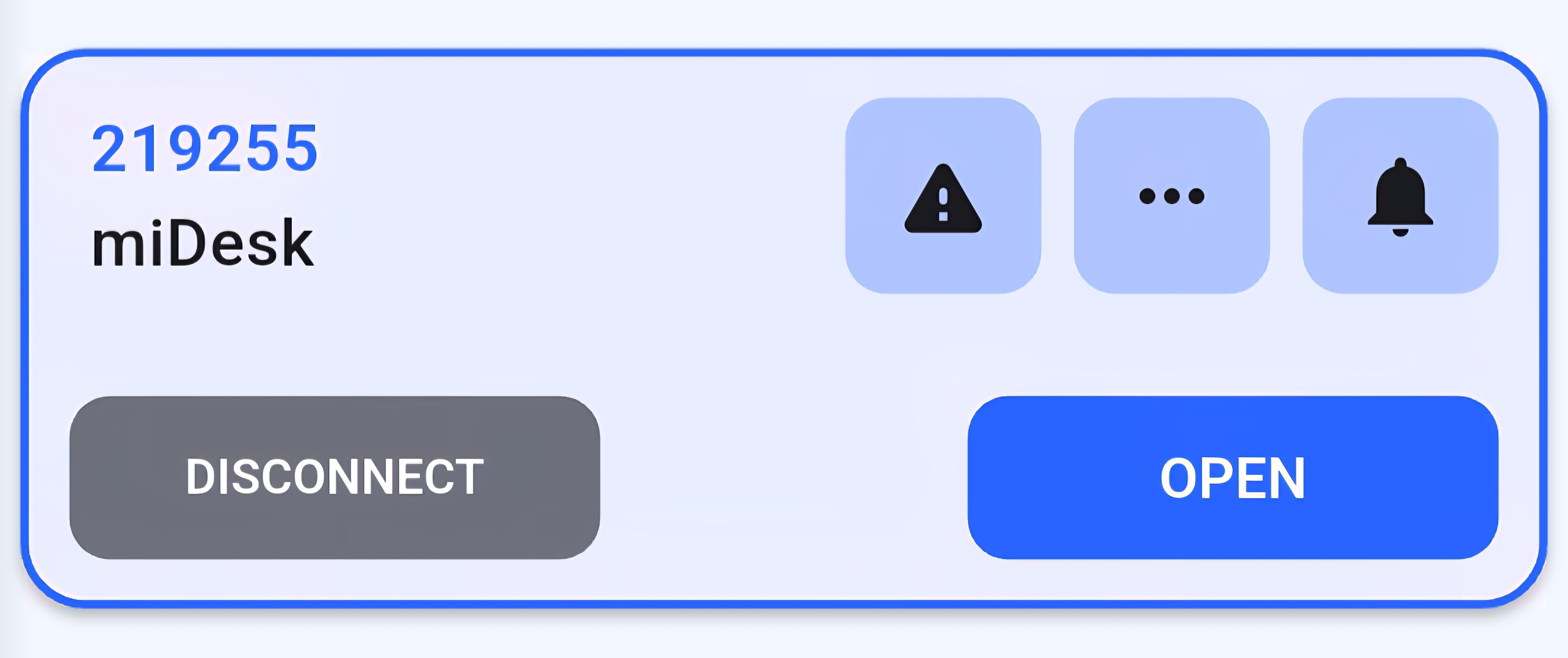
Once authorized, your device appears on the home screen showing:
- Device name
- Unit ID
- Connection status
- "Open" or "Connect" button
3. **Security Credentials**
- Password (must include at least one number and one uppercase letter)
- Confirm Password
4. Complete registration by tapping "Register"
**Important Considerations**:
- Each email address and phone number can only be used for one account
- Your username cannot be changed after registration
- Store your password securely - you'll need it for future logins
- Create a unique profile per user to avoid any notifications not arriving.
---
# Adding Devices
### Adding Your First Device
After successful registration, you'll be automatically logged in and prompted to add your first device.
#### Option 1: Scan Device Barcode (Recommended)
The fastest way to add your device:
1. Tap "Add a Device"
2. Allow camera access when prompted
3. Scan the QR code or barcode on your Finmon device
4. The system will automatically populate the device details
#### Option 2: Manual Entry
If scanning isn't possible:
1. Tap "Manually enter ID"
2. Type your Unit ID (found on the serial number label of your Finmon device)
3. Tap "Continue"
#### Device Configuration
Once your device is identified, configure these settings:
1. **Friendly Name**: Give your device a meaningful name (e.g., "Home Alarm", "Office Security")
2. **Dial-In Access**: Enable this option to allow remote control of your alarm panel
3. **User Code**: Enter your 4-digit alarm code (the same one you use on your keypad)
4. **Push Notifications**: Enable to receive real-time alerts on your phone
5. Tap "Add Device" to save your configuration
---
### Understanding the Authorization Process
After adding a device, you'll encounter one of three authorization statuses:
#### Authorization Requested
Your request has been sent to the device administrators. This is normal for shared systems where multiple users have access. Wait for an existing administrator to approve your request.
#### Master Access Granted
You've been approved as a device administrator. The device will now appear on your home screen with full access privileges.
#### Duplicate Device
The system detected this device is already linked to your account. Simply return to the home screen and look for your device in the list.
If you are unable to find your device, select the 3 menu lines on the top left of the screen, then select System Options and Restart.
---
# First Connection
### Connecting to Your Device
Once authorized, your device appears on the home screen showing:
- Device name
- Unit ID
- Connection status
- "Open" or "Connect" button
 #### Making Your First Connection
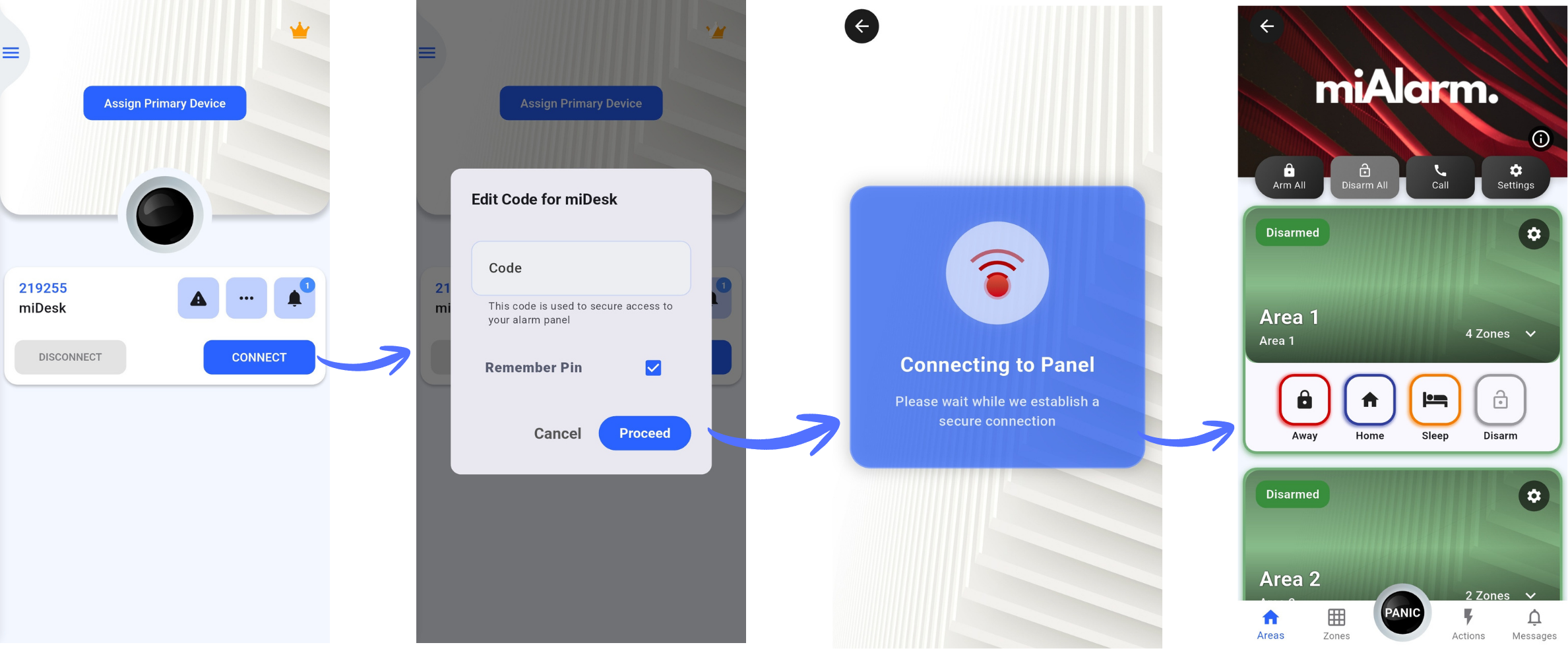
1. Tap "Open" on your device tile
2. If prompted, enter your 4-digit user code
3. Wait for the connection to establish (you'll see a loading screen)
4. Once connected, you'll have full access to monitor and control your alarm system
#### Making Your First Connection
1. Tap "Open" on your device tile
2. If prompted, enter your 4-digit user code
3. Wait for the connection to establish (you'll see a loading screen)
4. Once connected, you'll have full access to monitor and control your alarm system
 **Connection Tips**:
- Ensure your alarm unit has power and network connectivity
- The unit should show a green network status light
- If connection fails, verify your user code is correct
---
### Next Steps
Now that you're connected, explore these essential features:
- **Set a Primary Device**: For quick access from the home screen
- **Configure Notifications**: Customize which alerts you receive
- **Add Emergency Contacts**: Set up quick access to important numbers
- **Explore Your Panel**: Familiarize yourself with zones and areas
---
# User Guides
This section covers advanced configuration options and premium features available in miAlarm. Proper configuration ensures optimal performance and user experience.
# Primary Device Configuration
### Primary Device Configuration
#### Understanding Primary Devices
A primary device is your most frequently accessed alarm system, receiving:
- Priority connection allocation
- Prominent home screen placement
- Faster response times
#### Setting Your Primary Device
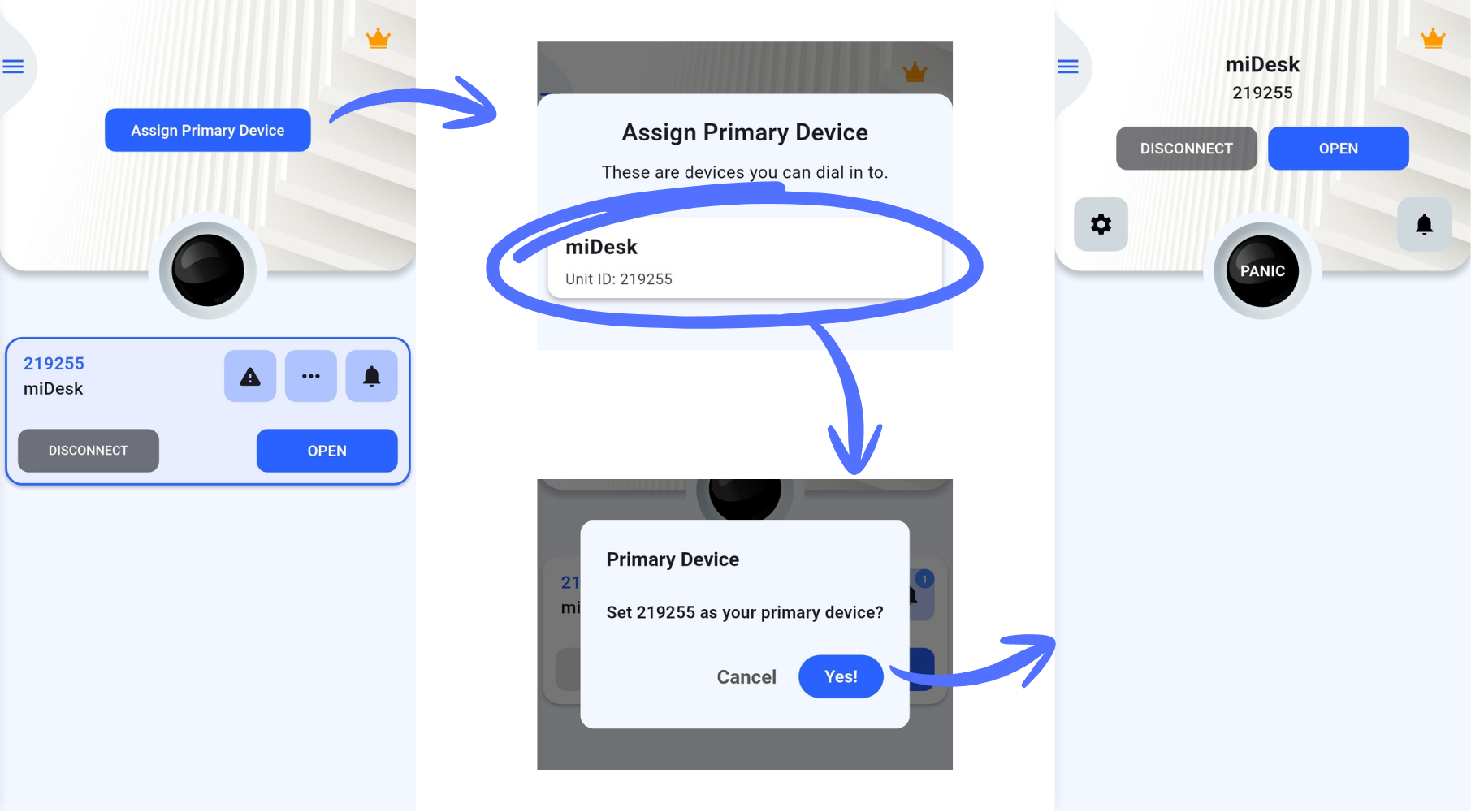
**Method 1: Home Screen Setup**
1. Tap "Assign Primary Device" on the main screen
2. Select your preferred device from the available list
3. Confirm your selection
**Connection Tips**:
- Ensure your alarm unit has power and network connectivity
- The unit should show a green network status light
- If connection fails, verify your user code is correct
---
### Next Steps
Now that you're connected, explore these essential features:
- **Set a Primary Device**: For quick access from the home screen
- **Configure Notifications**: Customize which alerts you receive
- **Add Emergency Contacts**: Set up quick access to important numbers
- **Explore Your Panel**: Familiarize yourself with zones and areas
---
# User Guides
This section covers advanced configuration options and premium features available in miAlarm. Proper configuration ensures optimal performance and user experience.
# Primary Device Configuration
### Primary Device Configuration
#### Understanding Primary Devices
A primary device is your most frequently accessed alarm system, receiving:
- Priority connection allocation
- Prominent home screen placement
- Faster response times
#### Setting Your Primary Device
**Method 1: Home Screen Setup**
1. Tap "Assign Primary Device" on the main screen
2. Select your preferred device from the available list
3. Confirm your selection
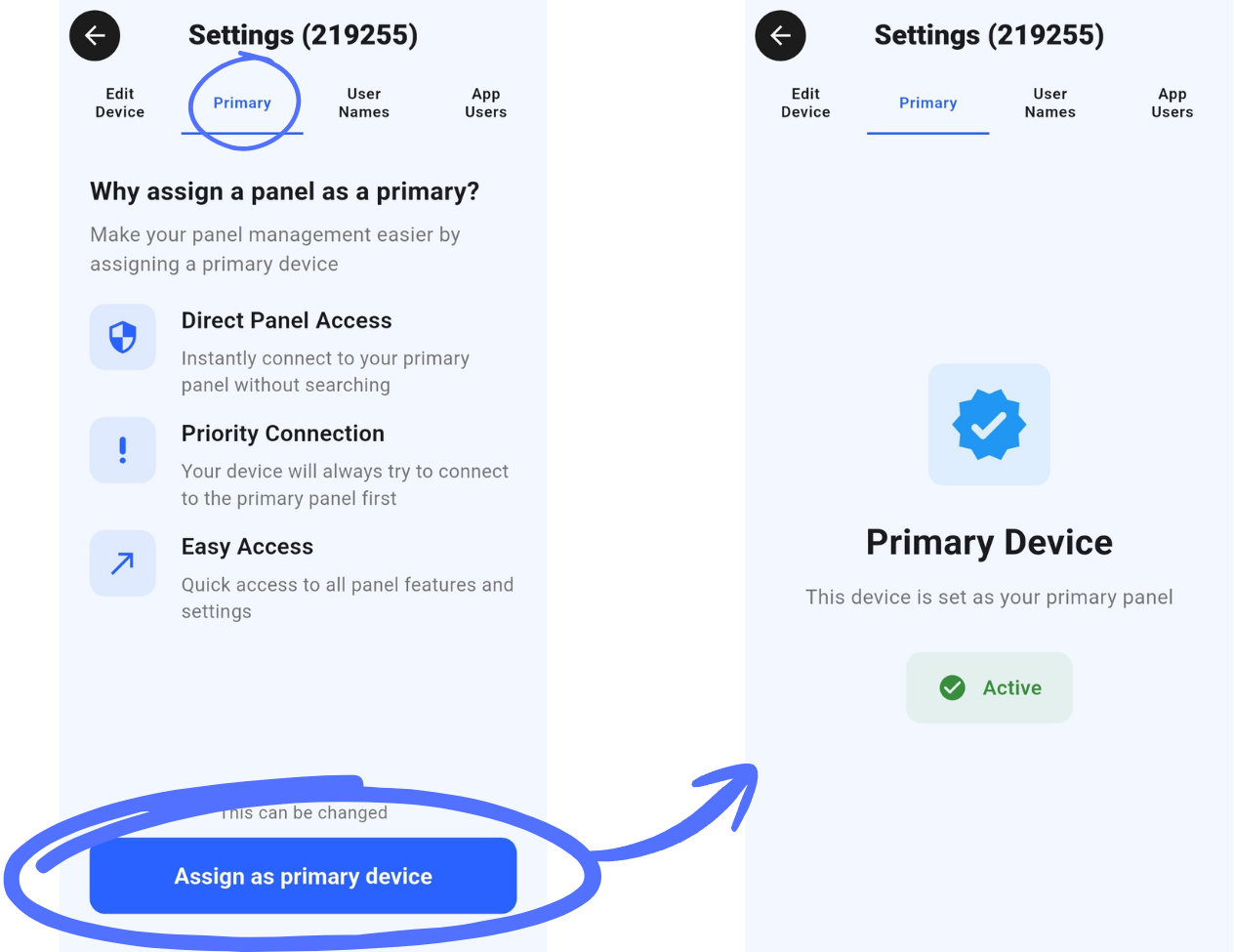
 **Method 2: Device Settings**
1. Open device settings
2. Navigate to the "Primary" tab
3. Enable "Set as primary device"
4. Confirm the change
**Method 2: Device Settings**
1. Open device settings
2. Navigate to the "Primary" tab
3. Enable "Set as primary device"
4. Confirm the change
 #### Managing Primary Status
- Only one device can be designated as primary
- Change primary designation at any time
- Remove primary status through device settings
- Visual indicators show current primary device
---
# Zone Management
### Zone Management
#### Zone Status Indicators
| Color | Status | Meaning |
|-------|--------|---------|
| 🟢 Green | Clear | Zone secure, no activity |
| 🔵 Blue | Bypassed | Zone disabled temporarily |
| 🔴 Red | Violated | Zone triggered/open |
| 🟠 Orange | Restored | Was violated, now clear |
#### Managing Zones
##### View All Zones:
1. Tap grid icon
2. Heatmap shows all zones
3. Filter by status/area
4. Click for details
##### Edit Zone Info:
1. Tap the Zones Grid Icon
2. Select relevant Zone number
3. Tap Edit Zone
4. Update:
- Zone name
- Triggered Text
- Clear Text
5. Save changes
---
### 🔄 Bypassing Zones {#bypass}
#### What is Bypassing?
Temporarily disable specific zones while keeping others active.
#### When to Bypass
- Faulty sensor
- Maintenance work
- Leaving window open
- Pet in secured area
- Temporary access needed
#### How to Bypass
##### Method 1: Zone List
1. Expand area card
2. Find zone to bypass
3. Toggle switch OFF
4. Zone turns blue
##### Method 2: Heatmap
1. Switch to heatmap view
2. Tap zone tile
3. Select "Bypass"
4. Confirm action
##### Method 3: Quick Swipe
1. In zone list
2. Swipe right on zone
3. Quick bypass toggle
#### Managing Bypassed Zones
##### View All Bypassed:
1. Heatmap view
2. Filter → "Bypassed"
3. Shows blue zones only
##### Clear All Bypasses:
1. Disarm area
2. Re-arm without bypass
3. Or manually unbypass each
##### Bypass Notifications:
- Alert when zones bypassed
- Status in notifications
---
# User Management
### User Management
#### Understanding User Roles
The system supports multiple user types with varying permission levels:
- **Master Users**: Full administrative privileges
- **Standard Users**: Limited operational access
#### User Administration (Master Users Only)
1. Access device settings
2. Select "User Names" tab
3. View all users with system access
4. Manage user permissions and access levels
#### User Management Capabilities
Master users can:
- View complete user lists
- Remove standard user access
- Edit user display names
#### User Code Management
- Each user has a unique 4-digit code
- Codes link to specific user profiles
- All actions are logged for security
- Regular code updates recommended
---
# Notification Configuration
### Notification Configuration
#### Comprehensive Alert Management
Customize your notification preferences to receive only the information you need, when you need it.
#### System-Wide Notifications
1. Access sidebar menu
2. Select "Notifications"
3. View consolidated message center
#### Device-Specific Settings
1. Open device settings
2. Navigate to "Push Notifications"
3. Enable or disable global notifications
4. Select specific alert types
#### Available Alert Categories
- **24-Hour Monitoring**: Always-active zone alerts
- **Access Events**: Entry and exit notifications
- **Auto Test**: Automated test results
- **Burglary**: Intrusion detection warnings
- **Bypass Notifications**: Zone override alerts
- **Fire Alarms**: Fire detection system alerts
- **Patrol Updates**: Security patrol confirmations
- **Medical Alerts**: Emergency medical notifications
- **Open/Close**: Standard opening and closing notifications
- **Open/Close Monitor**: Advanced opening and closing notifications
- **Panic**: Panic button activations
- **Supervision**: Monitored device notifications
- **System Messages**: General operational and maintenance notifications
#### Notification Best Practices
- Enable only essential notifications to avoid alert fatigue
- Test notification delivery monthly
- Ensure phone permissions are properly configured
- Consider quiet hours for non-emergency alerts
---
# Emergency Contact Management
### Emergency Contact Management
#### Personal Emergency Contacts
Configure trusted contacts for emergency situations:
1. Add primary emergency contacts
2. Test contact functionality regularly
#### Official Emergency Services
Customize official emergency numbers for your region:
- Police Services (SAPS)
- Fire Department
- Medical Emergency Services
- Armed Response Units
#### Location Sharing Features
- GPS coordinate transmission
- Manual sharing options available
---
# Advanced Configuration
### Advanced Configuration
#### Device Synchronization
Keep your device configuration current:
1. Access device settings
2. System retrieves latest configuration
3. Updates include:
- Area definitions
- Zone configurations
- Smart action settings
- User permissions
#### Operating Mode Selection
For compatible systems, switch between operational modes:
1. Navigate to Settings
2. Select "Mode" tile
3. Available options may include:
- Standard Mode
- Custom Panel Mode Configurations
4. Allow 2-3 minutes for mode changes to apply
#### Security Enhancements
**Biometric Authentication**
- Enable fingerprint or facial recognition
- Provides quick, secure access
- Password fallback always available
- Recommended for all users
**Auto-Logout Protection**
- 30-second inactivity timeout
- Prevents unauthorized access
- Applies to sensitive screens
**Session Management**
- "Remember Me" option for trusted devices
- Biometric re-authentication required
- Secure token storage
---
### Privacy and Permissions
#### Required Permissions
The app requires specific permissions to function properly:
- **Location**: For emergency GPS sharing
- **Camera**: For QR code scanning
- **Notifications**: For alert delivery
- **Contacts**: For emergency contact integration
#### Privacy Considerations
- All data transmissions are encrypted
- Location data only shared during emergencies
- No background location tracking
---
# Subscription Management
### Subscription Management
#### Account Tiers
**Free Account**
- Connect up to 5 devices
- Access all core features
- No time restrictions
**Pro Subscription**
- Connect up to 10 devices
- Advanced feature access
- Early access to new features
**Unlimited Subscription**
- Connect an unlimited amount of devices
- Access to ALL features
#### Subscription Options
- **Monthly Pro Plan**: R14.99 per month
- **Annual Pro Plan**: R149.99 per year (save 17%)
- **Monthly Unlimited Plan**: R149.99 per month
- **Annual Unlimited Plan**: R1499.99 per year (save 17%)
#### Managing Your Subscription
**To Purchase**:
1. Tap the crown icon on home screen
2. Select your preferred plan
3. Choose payment method
4. Complete transaction through app store
**To Manage Existing Subscription**:
1. Navigate to sidebar menu
2. Select "Subscriptions"
3. Manage through your app store account
4. Modify or cancel as needed
---
# Cancellation Emoji Feature
# Support
# FAQ
Find answers to common questions and solutions to typical issues.
---
### Common Questions
#### General Questions
**Q: What is miAlarm?**
A: miAlarm is a mobile app that allows you to control and monitor your Finmon security system remotely from your smartphone.
**Q: Is miAlarm free to use?**
A: Yes! The basic version supports up to 5 devices. Premium subscriptions offer up to 10 devices and additional features with an Unlimited version allowing no cap on your devices.
**Q: Which alarm systems are compatible?**
A: miAlarm works with Finmon-compatible alarm panels. Check your installer or the unit label for compatibility.
**Q: Can multiple people access the same alarm?**
A: Yes, multiple users can access the same alarm system with their own login credentials and appropriate permissions.
**Q: What is a "Dial-In"?**
A: Dial-In is the process where the app establishes a connection to your alarm unit, determining whether access is permitted.
#### Account Questions
**Q: Can I use the same email for multiple accounts?**
A: No, each account requires a unique email address and phone number.
**Q: I forgot my password. What do I do?**
A: Tap "Forgot Password" on the login screen and follow the reset instructions sent to your email.
**Q: How do I change my username?**
A: Usernames cannot be changed after registration. Contact support if you need assistance.
**Q: Can I transfer devices between accounts?**
A: Devices must be removed from one account before being added to another. Master user permission required.
---
### Technical Support
#### App Performance Issues
##### App Crashes
1. Update to latest version
2. Clear app cache:
- iOS: Delete and reinstall
- Android: Settings → Apps → miAlarm → Clear Cache
3. Restart phone
4. Check available storage
##### Slow Performance
- Close background apps
- Check internet speed
- Reduce number of active devices
##### Battery Drain
- Disable unnecessary notifications
- Reduce background refresh
- Check location services settings
- Update to latest app version
#### Notification Problems
##### Not Receiving Notifications
1. **Phone Settings**:
- Settings → Notifications → miAlarm → Allow
- Check Do Not Disturb isn't active
- Verify sound/banner settings
2. **App Settings**:
- Device Settings → Push Notifications → ON
- Select desired notification types
- Check each device individually
3. **Network Issues**:
- Ensure stable internet
- Check if app is restricted
- Verify background data allowed
##### Delayed Notifications
- Check internet connection
- Verify time zone settings
- Clear notification center
- Reinstall app if persistent
#### Zone & Sensor Issues
##### Zone Shows Wrong Status
- Refresh by pulling down
- Check physical sensor
- Verify zone programming
- Test in walk-test mode
##### Cannot Bypass Zone
- Some zones cannot be bypassed
- Check user permissions
- Verify area is disarmed
- Contact installer for zone type
##### Zones Not Updating
- Check connection status
- Sync device data
- Wait for full data load
- Verify panel communication
---
### Advanced Troubleshooting
#### Debug Mode
Enable for detailed logging:
1. Settings → About
2. Tap version number 5 times
3. Enable "Debug Mode"
4. Reproduce issue
5. Send logs to support
#### Factory Reset (Last Resort)
1. Delete app completely
2. Restart phone
3. Reinstall from app store
4. Register/login fresh
5. Re-add all devices
#### Network Diagnostics
Test connectivity:
- Ping alarm unit IP
- Check firewall settings
- Verify port forwarding
- Test on different network
#### Known Limitations
- Maximum 5/10 devices (free/paid)
- 30-second activity timeout
- Requires internet connection
- Some panels need firmware updates
---
### 📞 Contact Support
#### Before Contacting Support
Gather this information:
- App version number
- Device model and OS version
- Unit ID and panel type
- Error messages (screenshots)
- Steps to reproduce issue
#### Support Channels
**Email Support**
- 📧 support@mialarm.co.za
- Response within 24-48 hours
- Include all relevant details
**Emergency Support**
- For alarm emergencies: Call your security company
- For app issues: Email support
- For account locks: Use password reset
#### Installer Support
Some issues require installer assistance:
- Panel programming
- User code changes
- Hardware problems
- Firmware updates
---
### 💡 Tips & Best Practices
#### Preventive Measures
- ✅ Keep app updated
- ✅ Test monthly
- ✅ Maintain good passwords
- ✅ Update contact info
- ✅ Regular connection tests
#### Optimization Tips
- 🚀 Set primary device
- 🚀 Customize zone names
- 🚀 Use biometric login
- 🚀 Enable relevant notifications only
- 🚀 Regular cache clearing
#### Security Best Practices
- 🔒 Never share login credentials
- 🔒 Use strong passwords
- 🔒 Enable biometric authentication
- 🔒 Log out on shared devices
- 🔒 Keep emergency contacts updated
---
[← What's New](changelog) | [Support →](support)
# Troubleshooting Tools
### Troubleshooting Tools
---
### Connection Problems
#### Connection Diagnostics
When experiencing connection issues:
1. Verify network status indicators
2. Confirm user code accuracy
3. Check dial-in authorization
4. Test unit power status
5. Contact the installation company
#### "Cannot Connect to Unit"
This is the most common issue. Check these items in order:
1. **Unit Power**
- ✅ Confirm unit is powered on
- ✅ Check for power LED indicator
- ✅ Verify backup battery status
2. **Network Connection**
- ✅ Green network light on unit
- ✅ Test internet connectivity
- ✅ Check cellular signal (if applicable)
3. **User Code**
- ✅ Confirm 4-digit code is correct
- ✅ Try code on physical keypad
- ✅ Check with installer if needed
- ✅ Ensure code has app permissions
4. **App Settings**
- ✅ Dial-In is enabled
- ✅ Unit ID is correct
- ✅ Latest app version installed
- ✅ Phone has internet access
#### "Connection Timeout"
**Solutions:**
- Wait 30 seconds and retry
- Force close and reopen app
- Check internet speed
- Try on WiFi instead of cellular
- Contact installer for unit reset
#### "Authorization Required"
**What it means:**
- Waiting for master user approval
- Device not yet authorized
- Previous authorization revoked
**Solutions:**
- Contact a master user
- Check authorization status
- Verify request was sent
- Re-add device if needed
---
### Account Issues
#### "Invalid Credentials"
**Check:**
- Username spelling (case-sensitive)
- Password accuracy
- Caps lock isn't on
- Using correct account
#### "Account Locked"
**Caused by:**
- Multiple failed login attempts
- Security protection activated
**Solution:**
- Wait 15 minutes
- Use password reset
- Contact support if persistent
#### "Duplicate Device" Error
**Meaning:**
- Device already on your account
- Check device list carefully
**Fix:**
- Pull down to refresh home screen
- Remove and re-add if needed
#### Multi-User Issues
**"Cannot Remove User"**
- Only master users can remove others
- Cannot remove other masters
- Cannot remove yourself
**"User Limit Reached"**
- Maximum users per device reached
- Remove inactive users
- Contact installer for limit increase
#### Reset Options
- Clear application cache
- Reset notification preferences
- Re-synchronize device data
- Remove and re-add devices
---
#### Debug Mode (Advanced Users)
For detailed diagnostic information:
1. Reproduce the issue
2. Open Menu.
3. Tap your name five times.
4. Logs options appears on the menu.
5. Share logs with support team
Remember: With great power comes great responsibility. Use advanced features wisely, and when in doubt, consult the documentation or contact support.
# Support
We're here to help you get the most out of your miAlarm experience.
---
### Contact Information
#### Primary Support
**Email Support**
- **Email**: support@mialarm.co.za
- **Response Time**: 24-48 hours
- **Hours**: Monday-Friday, 8 AM - 5 PM SAST
- **Language**: English
**What to Include in Support Emails:**
1. Your account username
2. Unit ID (if device-specific)
3. App version number
4. Phone model and OS version
5. Detailed description of issue
6. Screenshots if applicable
7. Steps to reproduce problem
#### Emergency Contacts
**For Alarm Emergencies:**
- Contact your security company directly
- Use in-app "Call Control Room" feature
- For immediate danger: Call 10111 (SAPS)
### Business Inquiries
**Partnership & Integration**
- Installer programs available
- Corporate solutions offered
---
### Help Resources
#### In-App Help
**Help Icons (ℹ️)**
- Found throughout the app
- Tap for contextual help
- Includes glossary terms
**Tutorial Sections**
- First-time setup wizard
- Feature introductions
- Tooltips and hints
- Interactive guides
#### Documentation
**User Guides**
- [Getting Started Guide](https://www.finmon.co.za/kb/books/mialarm-app/chapter/getting-started)
- [Features and Settings](https://www.finmon.co.za/kb/books/mialarm-app/chapter/features-and-settings)
- [Support](https://www.finmon.co.za/kb/books/mialarm-app/chapter/support)
**Video Tutorials**
- Coming soon on YouTube
- Setup walkthroughs
- Feature demonstrations
- Troubleshooting guides
#### Knowledge Base
**Popular Articles:**
1. [How to add a new device](https://www.finmon.co.za/kb/books/mialarm-app/page/adding-devices)
2. [Setting up notifications](https://www.finmon.co.za/kb/books/mialarm-app/page/notification-configuration)
3. [Understanding zone colors](https://www.finmon.co.za/kb/books/mialarm-app/page/zone-management)
4. [Configuring emergency contacts](https://www.finmon.co.za/kb/books/mialarm-app/page/emergency-contact-management)
5. [Managing multiple users](https://www.finmon.co.za/kb/books/mialarm-app/page/user-management)
6. [Subscription Management](https://www.finmon.co.za/kb/books/mialarm-app/page/subscription-management)
7. [Troubleshooting connections](https://www.finmon.co.za/kb/books/mialarm-app/page/faq)
---
### Quick Solutions
#### Common Fixes
| Issue | Quick Solution |
|-------|---------------|
| Can't login | Check username/password, reset if needed |
| No connection | Verify unit power and network |
| Missing device | Pull down to refresh home screen |
| No notifications | Check phone and app settings |
| Slow performance | Clear cache, update app |
| Zones not updating | Sync device data in settings |
#### Diagnostic Steps
**Before Contacting Support:**
1. ✅ Update to latest app version
2. ✅ Restart the app
3. ✅ Check internet connection
4. ✅ Verify unit is online
5. ✅ Try on different network
6. ✅ Review FAQ section
---
### 🌟 Feedback
#### We Value Your Input
**Share Feedback:**
- Feature requests welcome
- Report bugs immediately
- Suggest improvements
- Rate the app
**How to Provide Feedback:**
1. Email suggestions
2. App store reviews
3. Social media comments
#### Feature Requests
**Submission Process:**
1. email support@mialarm.co.za
2. Provide detailed description
3. Explain use case
4. Include examples
**What Happens Next:**
- Team reviews all requests
- Popular features prioritized
- Updates on progress
---
### Thank You!
---
[← FAQ](faq) | [Back to Home](index)
# Self-Service Tools
### Self-Service Tools
#### Account Management
**Password Reset**
1. Login screen → "Forgot Password"
2. Enter registered email
3. Check email for reset link
4. Create new password
5. Login with new credentials
**Update Contact Info**
1. In-app profile settings
2. Edit email/phone number
3. Verify changes
4. Save updates
#### Device Management
**Remove Device**
1. Swipe device tile
2. Select "Remove"
3. Confirm deletion
4. Device removed from account
**Transfer Device**
1. Remove from current account
2. New user adds device
3. Master approval required
4. Transfer complete
---
#### Managing Primary Status
- Only one device can be designated as primary
- Change primary designation at any time
- Remove primary status through device settings
- Visual indicators show current primary device
---
# Zone Management
### Zone Management
#### Zone Status Indicators
| Color | Status | Meaning |
|-------|--------|---------|
| 🟢 Green | Clear | Zone secure, no activity |
| 🔵 Blue | Bypassed | Zone disabled temporarily |
| 🔴 Red | Violated | Zone triggered/open |
| 🟠 Orange | Restored | Was violated, now clear |
#### Managing Zones
##### View All Zones:
1. Tap grid icon
2. Heatmap shows all zones
3. Filter by status/area
4. Click for details
##### Edit Zone Info:
1. Tap the Zones Grid Icon
2. Select relevant Zone number
3. Tap Edit Zone
4. Update:
- Zone name
- Triggered Text
- Clear Text
5. Save changes
---
### 🔄 Bypassing Zones {#bypass}
#### What is Bypassing?
Temporarily disable specific zones while keeping others active.
#### When to Bypass
- Faulty sensor
- Maintenance work
- Leaving window open
- Pet in secured area
- Temporary access needed
#### How to Bypass
##### Method 1: Zone List
1. Expand area card
2. Find zone to bypass
3. Toggle switch OFF
4. Zone turns blue
##### Method 2: Heatmap
1. Switch to heatmap view
2. Tap zone tile
3. Select "Bypass"
4. Confirm action
##### Method 3: Quick Swipe
1. In zone list
2. Swipe right on zone
3. Quick bypass toggle
#### Managing Bypassed Zones
##### View All Bypassed:
1. Heatmap view
2. Filter → "Bypassed"
3. Shows blue zones only
##### Clear All Bypasses:
1. Disarm area
2. Re-arm without bypass
3. Or manually unbypass each
##### Bypass Notifications:
- Alert when zones bypassed
- Status in notifications
---
# User Management
### User Management
#### Understanding User Roles
The system supports multiple user types with varying permission levels:
- **Master Users**: Full administrative privileges
- **Standard Users**: Limited operational access
#### User Administration (Master Users Only)
1. Access device settings
2. Select "User Names" tab
3. View all users with system access
4. Manage user permissions and access levels
#### User Management Capabilities
Master users can:
- View complete user lists
- Remove standard user access
- Edit user display names
#### User Code Management
- Each user has a unique 4-digit code
- Codes link to specific user profiles
- All actions are logged for security
- Regular code updates recommended
---
# Notification Configuration
### Notification Configuration
#### Comprehensive Alert Management
Customize your notification preferences to receive only the information you need, when you need it.
#### System-Wide Notifications
1. Access sidebar menu
2. Select "Notifications"
3. View consolidated message center
#### Device-Specific Settings
1. Open device settings
2. Navigate to "Push Notifications"
3. Enable or disable global notifications
4. Select specific alert types
#### Available Alert Categories
- **24-Hour Monitoring**: Always-active zone alerts
- **Access Events**: Entry and exit notifications
- **Auto Test**: Automated test results
- **Burglary**: Intrusion detection warnings
- **Bypass Notifications**: Zone override alerts
- **Fire Alarms**: Fire detection system alerts
- **Patrol Updates**: Security patrol confirmations
- **Medical Alerts**: Emergency medical notifications
- **Open/Close**: Standard opening and closing notifications
- **Open/Close Monitor**: Advanced opening and closing notifications
- **Panic**: Panic button activations
- **Supervision**: Monitored device notifications
- **System Messages**: General operational and maintenance notifications
#### Notification Best Practices
- Enable only essential notifications to avoid alert fatigue
- Test notification delivery monthly
- Ensure phone permissions are properly configured
- Consider quiet hours for non-emergency alerts
---
# Emergency Contact Management
### Emergency Contact Management
#### Personal Emergency Contacts
Configure trusted contacts for emergency situations:
1. Add primary emergency contacts
2. Test contact functionality regularly
#### Official Emergency Services
Customize official emergency numbers for your region:
- Police Services (SAPS)
- Fire Department
- Medical Emergency Services
- Armed Response Units
#### Location Sharing Features
- GPS coordinate transmission
- Manual sharing options available
---
# Advanced Configuration
### Advanced Configuration
#### Device Synchronization
Keep your device configuration current:
1. Access device settings
2. System retrieves latest configuration
3. Updates include:
- Area definitions
- Zone configurations
- Smart action settings
- User permissions
#### Operating Mode Selection
For compatible systems, switch between operational modes:
1. Navigate to Settings
2. Select "Mode" tile
3. Available options may include:
- Standard Mode
- Custom Panel Mode Configurations
4. Allow 2-3 minutes for mode changes to apply
#### Security Enhancements
**Biometric Authentication**
- Enable fingerprint or facial recognition
- Provides quick, secure access
- Password fallback always available
- Recommended for all users
**Auto-Logout Protection**
- 30-second inactivity timeout
- Prevents unauthorized access
- Applies to sensitive screens
**Session Management**
- "Remember Me" option for trusted devices
- Biometric re-authentication required
- Secure token storage
---
### Privacy and Permissions
#### Required Permissions
The app requires specific permissions to function properly:
- **Location**: For emergency GPS sharing
- **Camera**: For QR code scanning
- **Notifications**: For alert delivery
- **Contacts**: For emergency contact integration
#### Privacy Considerations
- All data transmissions are encrypted
- Location data only shared during emergencies
- No background location tracking
---
# Subscription Management
### Subscription Management
#### Account Tiers
**Free Account**
- Connect up to 5 devices
- Access all core features
- No time restrictions
**Pro Subscription**
- Connect up to 10 devices
- Advanced feature access
- Early access to new features
**Unlimited Subscription**
- Connect an unlimited amount of devices
- Access to ALL features
#### Subscription Options
- **Monthly Pro Plan**: R14.99 per month
- **Annual Pro Plan**: R149.99 per year (save 17%)
- **Monthly Unlimited Plan**: R149.99 per month
- **Annual Unlimited Plan**: R1499.99 per year (save 17%)
#### Managing Your Subscription
**To Purchase**:
1. Tap the crown icon on home screen
2. Select your preferred plan
3. Choose payment method
4. Complete transaction through app store
**To Manage Existing Subscription**:
1. Navigate to sidebar menu
2. Select "Subscriptions"
3. Manage through your app store account
4. Modify or cancel as needed
---
# Cancellation Emoji Feature
# Support
# FAQ
Find answers to common questions and solutions to typical issues.
---
### Common Questions
#### General Questions
**Q: What is miAlarm?**
A: miAlarm is a mobile app that allows you to control and monitor your Finmon security system remotely from your smartphone.
**Q: Is miAlarm free to use?**
A: Yes! The basic version supports up to 5 devices. Premium subscriptions offer up to 10 devices and additional features with an Unlimited version allowing no cap on your devices.
**Q: Which alarm systems are compatible?**
A: miAlarm works with Finmon-compatible alarm panels. Check your installer or the unit label for compatibility.
**Q: Can multiple people access the same alarm?**
A: Yes, multiple users can access the same alarm system with their own login credentials and appropriate permissions.
**Q: What is a "Dial-In"?**
A: Dial-In is the process where the app establishes a connection to your alarm unit, determining whether access is permitted.
#### Account Questions
**Q: Can I use the same email for multiple accounts?**
A: No, each account requires a unique email address and phone number.
**Q: I forgot my password. What do I do?**
A: Tap "Forgot Password" on the login screen and follow the reset instructions sent to your email.
**Q: How do I change my username?**
A: Usernames cannot be changed after registration. Contact support if you need assistance.
**Q: Can I transfer devices between accounts?**
A: Devices must be removed from one account before being added to another. Master user permission required.
---
### Technical Support
#### App Performance Issues
##### App Crashes
1. Update to latest version
2. Clear app cache:
- iOS: Delete and reinstall
- Android: Settings → Apps → miAlarm → Clear Cache
3. Restart phone
4. Check available storage
##### Slow Performance
- Close background apps
- Check internet speed
- Reduce number of active devices
##### Battery Drain
- Disable unnecessary notifications
- Reduce background refresh
- Check location services settings
- Update to latest app version
#### Notification Problems
##### Not Receiving Notifications
1. **Phone Settings**:
- Settings → Notifications → miAlarm → Allow
- Check Do Not Disturb isn't active
- Verify sound/banner settings
2. **App Settings**:
- Device Settings → Push Notifications → ON
- Select desired notification types
- Check each device individually
3. **Network Issues**:
- Ensure stable internet
- Check if app is restricted
- Verify background data allowed
##### Delayed Notifications
- Check internet connection
- Verify time zone settings
- Clear notification center
- Reinstall app if persistent
#### Zone & Sensor Issues
##### Zone Shows Wrong Status
- Refresh by pulling down
- Check physical sensor
- Verify zone programming
- Test in walk-test mode
##### Cannot Bypass Zone
- Some zones cannot be bypassed
- Check user permissions
- Verify area is disarmed
- Contact installer for zone type
##### Zones Not Updating
- Check connection status
- Sync device data
- Wait for full data load
- Verify panel communication
---
### Advanced Troubleshooting
#### Debug Mode
Enable for detailed logging:
1. Settings → About
2. Tap version number 5 times
3. Enable "Debug Mode"
4. Reproduce issue
5. Send logs to support
#### Factory Reset (Last Resort)
1. Delete app completely
2. Restart phone
3. Reinstall from app store
4. Register/login fresh
5. Re-add all devices
#### Network Diagnostics
Test connectivity:
- Ping alarm unit IP
- Check firewall settings
- Verify port forwarding
- Test on different network
#### Known Limitations
- Maximum 5/10 devices (free/paid)
- 30-second activity timeout
- Requires internet connection
- Some panels need firmware updates
---
### 📞 Contact Support
#### Before Contacting Support
Gather this information:
- App version number
- Device model and OS version
- Unit ID and panel type
- Error messages (screenshots)
- Steps to reproduce issue
#### Support Channels
**Email Support**
- 📧 support@mialarm.co.za
- Response within 24-48 hours
- Include all relevant details
**Emergency Support**
- For alarm emergencies: Call your security company
- For app issues: Email support
- For account locks: Use password reset
#### Installer Support
Some issues require installer assistance:
- Panel programming
- User code changes
- Hardware problems
- Firmware updates
---
### 💡 Tips & Best Practices
#### Preventive Measures
- ✅ Keep app updated
- ✅ Test monthly
- ✅ Maintain good passwords
- ✅ Update contact info
- ✅ Regular connection tests
#### Optimization Tips
- 🚀 Set primary device
- 🚀 Customize zone names
- 🚀 Use biometric login
- 🚀 Enable relevant notifications only
- 🚀 Regular cache clearing
#### Security Best Practices
- 🔒 Never share login credentials
- 🔒 Use strong passwords
- 🔒 Enable biometric authentication
- 🔒 Log out on shared devices
- 🔒 Keep emergency contacts updated
---
[← What's New](changelog) | [Support →](support)
# Troubleshooting Tools
### Troubleshooting Tools
---
### Connection Problems
#### Connection Diagnostics
When experiencing connection issues:
1. Verify network status indicators
2. Confirm user code accuracy
3. Check dial-in authorization
4. Test unit power status
5. Contact the installation company
#### "Cannot Connect to Unit"
This is the most common issue. Check these items in order:
1. **Unit Power**
- ✅ Confirm unit is powered on
- ✅ Check for power LED indicator
- ✅ Verify backup battery status
2. **Network Connection**
- ✅ Green network light on unit
- ✅ Test internet connectivity
- ✅ Check cellular signal (if applicable)
3. **User Code**
- ✅ Confirm 4-digit code is correct
- ✅ Try code on physical keypad
- ✅ Check with installer if needed
- ✅ Ensure code has app permissions
4. **App Settings**
- ✅ Dial-In is enabled
- ✅ Unit ID is correct
- ✅ Latest app version installed
- ✅ Phone has internet access
#### "Connection Timeout"
**Solutions:**
- Wait 30 seconds and retry
- Force close and reopen app
- Check internet speed
- Try on WiFi instead of cellular
- Contact installer for unit reset
#### "Authorization Required"
**What it means:**
- Waiting for master user approval
- Device not yet authorized
- Previous authorization revoked
**Solutions:**
- Contact a master user
- Check authorization status
- Verify request was sent
- Re-add device if needed
---
### Account Issues
#### "Invalid Credentials"
**Check:**
- Username spelling (case-sensitive)
- Password accuracy
- Caps lock isn't on
- Using correct account
#### "Account Locked"
**Caused by:**
- Multiple failed login attempts
- Security protection activated
**Solution:**
- Wait 15 minutes
- Use password reset
- Contact support if persistent
#### "Duplicate Device" Error
**Meaning:**
- Device already on your account
- Check device list carefully
**Fix:**
- Pull down to refresh home screen
- Remove and re-add if needed
#### Multi-User Issues
**"Cannot Remove User"**
- Only master users can remove others
- Cannot remove other masters
- Cannot remove yourself
**"User Limit Reached"**
- Maximum users per device reached
- Remove inactive users
- Contact installer for limit increase
#### Reset Options
- Clear application cache
- Reset notification preferences
- Re-synchronize device data
- Remove and re-add devices
---
#### Debug Mode (Advanced Users)
For detailed diagnostic information:
1. Reproduce the issue
2. Open Menu.
3. Tap your name five times.
4. Logs options appears on the menu.
5. Share logs with support team
Remember: With great power comes great responsibility. Use advanced features wisely, and when in doubt, consult the documentation or contact support.
# Support
We're here to help you get the most out of your miAlarm experience.
---
### Contact Information
#### Primary Support
**Email Support**
- **Email**: support@mialarm.co.za
- **Response Time**: 24-48 hours
- **Hours**: Monday-Friday, 8 AM - 5 PM SAST
- **Language**: English
**What to Include in Support Emails:**
1. Your account username
2. Unit ID (if device-specific)
3. App version number
4. Phone model and OS version
5. Detailed description of issue
6. Screenshots if applicable
7. Steps to reproduce problem
#### Emergency Contacts
**For Alarm Emergencies:**
- Contact your security company directly
- Use in-app "Call Control Room" feature
- For immediate danger: Call 10111 (SAPS)
### Business Inquiries
**Partnership & Integration**
- Installer programs available
- Corporate solutions offered
---
### Help Resources
#### In-App Help
**Help Icons (ℹ️)**
- Found throughout the app
- Tap for contextual help
- Includes glossary terms
**Tutorial Sections**
- First-time setup wizard
- Feature introductions
- Tooltips and hints
- Interactive guides
#### Documentation
**User Guides**
- [Getting Started Guide](https://www.finmon.co.za/kb/books/mialarm-app/chapter/getting-started)
- [Features and Settings](https://www.finmon.co.za/kb/books/mialarm-app/chapter/features-and-settings)
- [Support](https://www.finmon.co.za/kb/books/mialarm-app/chapter/support)
**Video Tutorials**
- Coming soon on YouTube
- Setup walkthroughs
- Feature demonstrations
- Troubleshooting guides
#### Knowledge Base
**Popular Articles:**
1. [How to add a new device](https://www.finmon.co.za/kb/books/mialarm-app/page/adding-devices)
2. [Setting up notifications](https://www.finmon.co.za/kb/books/mialarm-app/page/notification-configuration)
3. [Understanding zone colors](https://www.finmon.co.za/kb/books/mialarm-app/page/zone-management)
4. [Configuring emergency contacts](https://www.finmon.co.za/kb/books/mialarm-app/page/emergency-contact-management)
5. [Managing multiple users](https://www.finmon.co.za/kb/books/mialarm-app/page/user-management)
6. [Subscription Management](https://www.finmon.co.za/kb/books/mialarm-app/page/subscription-management)
7. [Troubleshooting connections](https://www.finmon.co.za/kb/books/mialarm-app/page/faq)
---
### Quick Solutions
#### Common Fixes
| Issue | Quick Solution |
|-------|---------------|
| Can't login | Check username/password, reset if needed |
| No connection | Verify unit power and network |
| Missing device | Pull down to refresh home screen |
| No notifications | Check phone and app settings |
| Slow performance | Clear cache, update app |
| Zones not updating | Sync device data in settings |
#### Diagnostic Steps
**Before Contacting Support:**
1. ✅ Update to latest app version
2. ✅ Restart the app
3. ✅ Check internet connection
4. ✅ Verify unit is online
5. ✅ Try on different network
6. ✅ Review FAQ section
---
### 🌟 Feedback
#### We Value Your Input
**Share Feedback:**
- Feature requests welcome
- Report bugs immediately
- Suggest improvements
- Rate the app
**How to Provide Feedback:**
1. Email suggestions
2. App store reviews
3. Social media comments
#### Feature Requests
**Submission Process:**
1. email support@mialarm.co.za
2. Provide detailed description
3. Explain use case
4. Include examples
**What Happens Next:**
- Team reviews all requests
- Popular features prioritized
- Updates on progress
---
### Thank You!
---
[← FAQ](faq) | [Back to Home](index)
# Self-Service Tools
### Self-Service Tools
#### Account Management
**Password Reset**
1. Login screen → "Forgot Password"
2. Enter registered email
3. Check email for reset link
4. Create new password
5. Login with new credentials
**Update Contact Info**
1. In-app profile settings
2. Edit email/phone number
3. Verify changes
4. Save updates
#### Device Management
**Remove Device**
1. Swipe device tile
2. Select "Remove"
3. Confirm deletion
4. Device removed from account
**Transfer Device**
1. Remove from current account
2. New user adds device
3. Master approval required
4. Transfer complete
---